File Permissions and Access Control Lists

File Permissions and Access Control Lists
In Linux, file permissions are an essential aspect of maintaining security and controlling access to files and directories. They determine who can read, write, and execute files, and they are set for three categories of users: owner, group, and others. The file permissions are represented by a combination of letters and symbols.
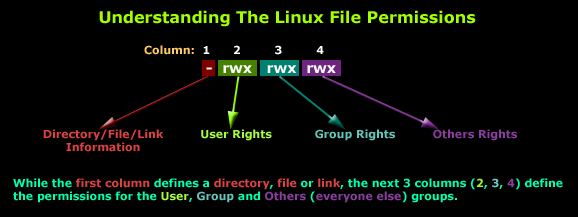
Here is a breakdown of the different file permissions and their symbols:
r: Read permission. Users with this permission can view the content of the file or list the contents of a directory.
w: Write permission. Users with this permission can modify the file's content or create, delete, and rename files within a directory.
x: Execute permission. For files, this permission allows users to execute the file as a program or script. For directories, it allows users to access and navigate the directory.
The permissions are assigned to the owner, group, and others using a 3-digit octal number or a combination of symbols:
r: 4
w: 2
x: 1
For example, if a file has read and write permissions for the owner, read-only permissions for the group, and no permissions for others, it would be represented as 640 in octal notation or rw-r----- in symbolic notation.
Here is a breakdown of the symbolic notation:
The first character indicates the file type. For example, a regular file is represented by a hyphen (-), while a directory is represented by a d.
The next three characters represent the owner's permissions.
The next three characters represent the group's permissions.
The last three characters represent the permissions for others.
In the output of the ls -l command, the first character of the file permissions field represents the file type. Here are some commonly encountered file types:
-: Regular filed: Directoryl: Symbolic linkc: Character device fileb: Block device filep: Named pipe (FIFO)s: Socket
So, if the first character in the file listing is -, it indicates that the entry is a regular file, not a directory.
Taking Control with chown:
The chown command allows us to change the owner of a file or directory. Only the superuser or the current owner can modify ownership. By using the chown command, you can transfer ownership from one user to another.
By using the chown command, you can transfer ownership from one user to another. For instance, to change the owner of a file named example.txt to a user named john, you would use the following command:
chown john example.txt
Group Ownership with chgrp:
The chgrp command enables us to change the group ownership of a file or directory. Similar to chown, only the superuser or the current owner can alter the group ownership.
To change the group ownership of a file named example.txt to a group named developers, you can use the following command:
chgrp developers example.txt
Access Control Lists (ACLs)
are an extension to traditional file permissions in Linux that allow for more fine-grained access control. While standard file permissions grant access to the owner, group, and others, ACLs enable you to define permissions for specific users or groups beyond those categories.
Before exploring ACL examples, let's familiarize ourselves with some key terms:
Entry: An entry is a single rule within an ACL that specifies a user or group and their corresponding permissions.
Default Entry: A default entry is an entry that applies to newly created files or directories within a directory.
Effective Permissions: The effective permissions are the combined result of standard file permissions and any ACL entries that apply to a particular user or group.
Understanding ACL Syntax: ACLs are represented using an extended notation. Each entry in the ACL has the following structure:
[Entry Type]:[Qualifier]:[Permissions]
Entry Type: It specifies whether the entry is for a user (
u), group (g), or mask (m).Qualifier: It identifies the specific user or group for which the permissions are defined.
Permissions: These represent the specific access rights assigned to the user or group.
Let's explore a few examples to illustrate how ACLs work:
- Granting Additional Permissions to a User: Suppose you have a file named
important.txt, and you want to grant read and write permissions to a user namedemmawho is not the owner of the file. To achieve this, you can use thesetfaclcommand as follows:
setfacl -m u:emma:rw- important.txt
This command adds a new ACL entry granting read and writes permissions to the user emma.
- Assigning Permissions to a Group: Consider a scenario where you have a directory named
shared_folder, and you want to grant read and write permissions to a group namedteam. To accomplish this, you can use thesetfaclcommand with the-Roption to apply the ACL recursively to all files and directories withinshared_folder:
setfacl -R -m g:team:rw- shared_folder
This command sets the ACL entry to allow the group team to have read and write permissions on all files and directories within shared_folder.
Setting Default Permissions for Newly Created Files: In some cases, you may want to define default permissions for files or directories created within a specific directory. Let's say you want all newly created files in the directory docs to have read and write permissions for the group users. You can use the setfacl command with the -d option to set a default ACL entry
setfacl -d -m g:users:rw- docs
This command sets a default ACL entry that assigns read and write permissions for the group users to any new files created within the docs directory.
Access Control Lists (ACLs) provide a way to enhance access control beyond standard file permissions in Linux. By granting specific permissions to individual users or groups, you can achieve fine-grained control over access to files and directories. Whether it's granting additional permissions, assigning permissions to groups, or defining default permissions, ACLs offer flexibility and precision in access management. By mastering the usage of ACLs alongside standard file permissions, you can effectively manage access control within your Linux system, ensuring that the right users have the appropriate level of access to your data
\===========================================================
Will appreciate your feedback!
#90daysofdevops
https://www.linkedin.com/in/shifa-syed-49014b229/
Happy Learning!!!-


